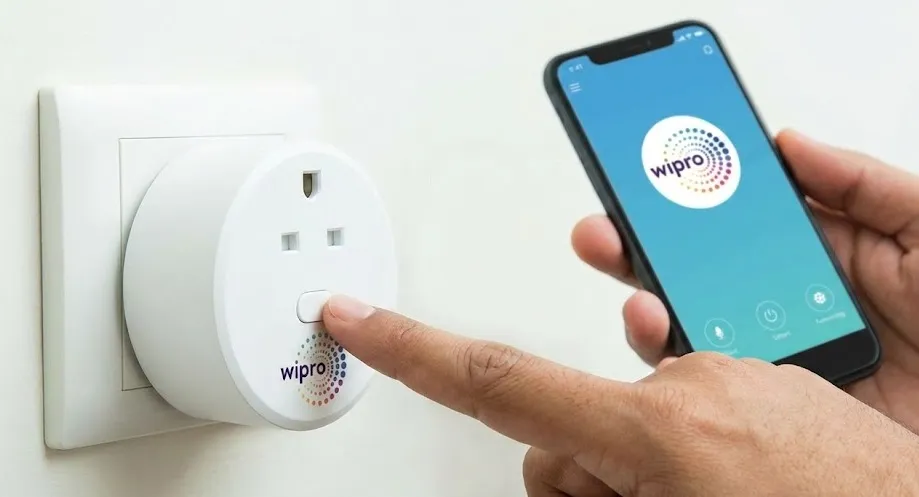
Smart home devices are magical, until they aren’t. One moment, you are controlling your coffee maker with your voice, and the next, your smart plug is offline and refusing to listen. If you are reading this, you are likely staring at a stubborn device, wondering how to reset Wipro smart plug to get your smart home back on track.
Don’t worry; you are not alone. Whether you have changed your Wi-Fi router, moved to a new house, or the device is just acting glitchy, a factory reset is usually the magic cure. In this guide, we will walk you through the entire process in simple English, ensuring you can get back to your automated life without a headache.
Why Do You Need to Reset Your Smart Plug?
Before we dive into the buttons and lights, it helps to understand why you are doing this. Resetting a smart device isn’t just about turning it off and on again; it is about wiping its memory so it can start fresh.
Here are the most common reasons users search for how to reset Wipro smart plug:
- New Wi-Fi Network: You bought a new router or changed your Wi-Fi password. The plug is still looking for the old signal and needs to be introduced to the new one.
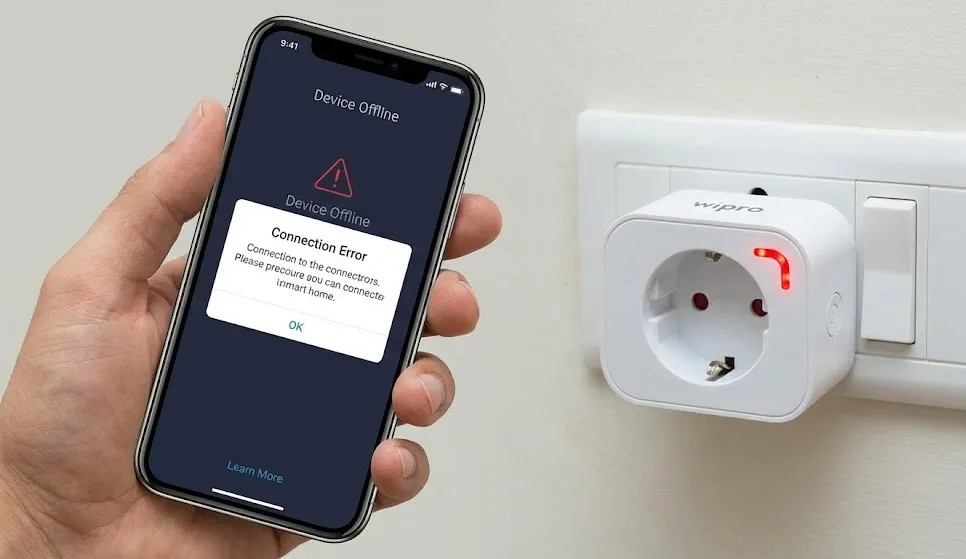
- Device Offline Error: The app shows the device as “Offline” or “Unresponsive,” and simple restarting hasn’t fixed it.
- Power Surges: A sudden power cut or surge can sometimes scramble the device’s internal connection logic.
- Selling or Gifting: If you are giving the plug to a friend, you must reset it to remove your personal data and account linkage.
Step-by-Step: How to Reset Wipro Smart Plug
Resetting the Wipro smart plug is a physical process. You don’t need the app for this part, just the plug and a power socket.
Method 1: The Hard Reset (Physical Button)
This is the most reliable method. It works even if the device is completely offline in your app.
- Power Up: Plug your Wipro smart plug into a working wall socket and switch the socket ON.
- Locate the Button: Find the power button on the smart plug. It is usually located on the side or the front face of the device.
- The Long Press: Press and hold the power button for about 5 to 10 seconds.
- Watch the LED: Keep holding until you see the LED indicator light start blinking.
- Rapid Blinking: If the light flashes quickly (about twice per second), the device is in EZ Mode. This is the standard pairing mode.
- Slow Blinking: If the light flashes slowly (once every 3 seconds), it is in AP Mode.
Note: If you want to switch between Rapid and Slow blinking modes, simply repeat the long-press process once more.
Method 2: The Soft Reset (Via App)
If your device is still online but acting weird (e.g., schedules aren’t working), you can reset it directly through the Wipro Next Smart Home app.
- Open the Wipro Next Smart Home app on your phone.
- Tap on the smart plug you want to fix.
- Click the pencil icon or settings menu in the top right corner.
- Scroll to the bottom and select “Remove Device.”
- Confirm the action. This will automatically wipe the data and put the plug back into pairing mode (rapid blinking).
Understanding the Blinking Lights
When learning how to reset Wipro smart plug, understanding the light signals is half the battle. The LED isn’t just flashing for fun; it is trying to talk to you.
- Rapid Blink (EZ Mode): This stands for “Easy Mode.” The plug is shouting, “I am ready to connect! Find me!” This is the mode you want for the standard setup process.
- Slow Blink (AP Mode): This stands for “Access Point Mode.” If the standard connection fails, the plug creates its own mini Wi-Fi hotspot. You connect your phone to this hotspot to transfer the Wi-Fi details.
- Solid Light: The device is connected and ON.
- No Light: The device is connected but OFF, or there is no power.
How to Re-Connect After Resetting
Now that you have successfully reset the device, you need to pair it again.
- Open the App: Launch the Wipro Next Smart Home app.
- Tap ‘+’ Icon: Click “Add Device” or the ‘+’ sign in the top corner.
- Select Device Type: Choose “Electrician” or “Smart Plug (Wi-Fi).”
- Confirm the Blink: The app will ask, “Is the indicator blinking rapidly?” If you followed the steps above, it should be. Tap “Confirm.”
- Enter Wi-Fi Details: Input your Wi-Fi password. (Crucial: See the section below about 2.4GHz networks).
- Wait: The app will scan, register the device to the cloud, and initialize it.
Troubleshooting: Why Won’t It Connect?
You followed the guide on how to reset Wipro smart plug, but the app still says “Connection Failed.” This is incredibly frustrating, but it is usually due to one of three common errors.
1. The 2.4GHz vs. 5GHz Problem
This is the #1 reason for failure. Wipro smart plugs (and most smart home gadgets) only work on the 2.4GHz Wi-Fi band. They cannot see or connect to 5GHz networks.
- The Fix: Check your router settings. If you have a dual-band router, ensure your phone is connected to the 2.4GHz network, not the 5GHz one, during the setup process.
2. Mobile Data Interference
Sometimes, your phone’s 4G/5G mobile data conflicts with the Wi-Fi setup process.
- The Fix: Turn off “Mobile Data” on your smartphone. Turn on only Wi-Fi and Bluetooth, then try the pairing process again. Once paired, you can turn your mobile data back on.
3. Router Limit Reached
If you have a lot of smart devices (bulbs, plugs, Alexa, phones), your basic home router might have hit its limit for connected devices (usually around 15-20 devices for older routers).
- The Fix: Try disconnecting an old phone or laptop from the Wi-Fi and see if the plug connects. If it does, you might need a router upgrade.
Safety Tips for Your Smart Plug
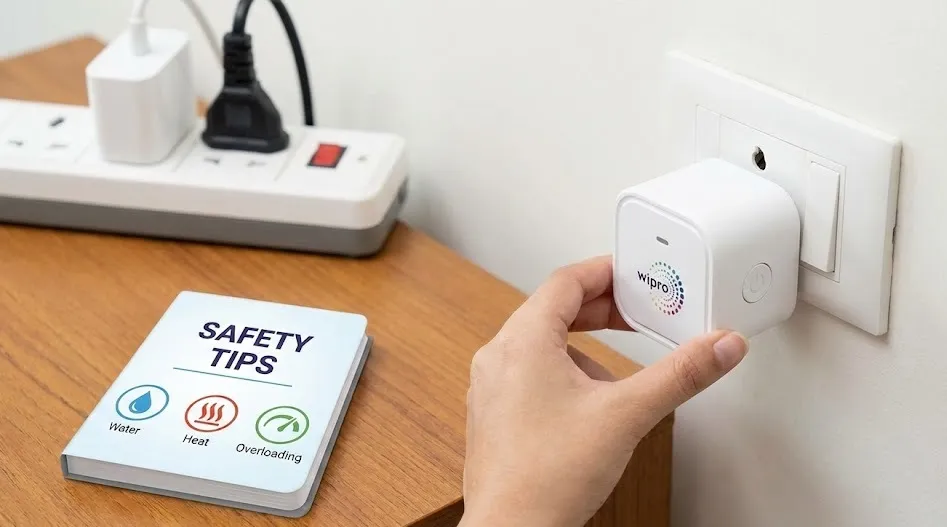
While we are discussing maintenance, keep these safety tips in mind to prolong the life of your device:
- Don’t Overload: Check the ampere rating (usually 10A or 16A). Do not plug a heavy-duty heater into a 10A smart plug; it will melt or fuse.
- Update Firmware: After you reset and re-connect, the app may prompt you for a firmware update. Always say yes. These updates fix bugs that cause the connection issues in the first place.
- Keep it Dry: Smart plugs are generally not waterproof. Keep them away from kitchen sinks or bathroom splashes.
Conclusion
Technology is fantastic when it works, but a little knowledge goes a long way when it breaks. Learning how to reset Wipro smart plug is a handy skill that takes less than a minute but saves you hours of frustration.
Remember the golden rule: Press and hold for 5-10 seconds.
Whether you are troubleshooting a glitch or setting up a brand-new network, a quick factory reset is usually all it takes to make your home “smart” again. If you have tried everything and it still won’t blink, it might be time to contact Wipro support or consider a replacement, but 99% of the time, the steps above will solve your problem.
Does this guide help you fix your smart plug? Let us know if you faced any specific errors during the process!