We have all been there. You just bought a shiny new smart switch, excited to finally control your lights with your voice or phone. You unbox it, wire it up, download the app, and then… nothing. The dreaded loading spinner just keeps spinning, or you get that frustrating “Connection Failed” error message.
If your smart switch is not connecting to Wi-Fi, it can feel incredibly annoying. You might even be tempted to rip it out of the wall and return it. But before you give up on your smart home dreams, take a deep breath.
The truth is, this is one of the most common problems in home automation, and 90% of the time, the fix is actually quite simple. In this guide, we will walk through the specific reasons why this happens and give you step-by-step solutions to get everything running smoothly.
Why is My Smart Switch Not Connecting?
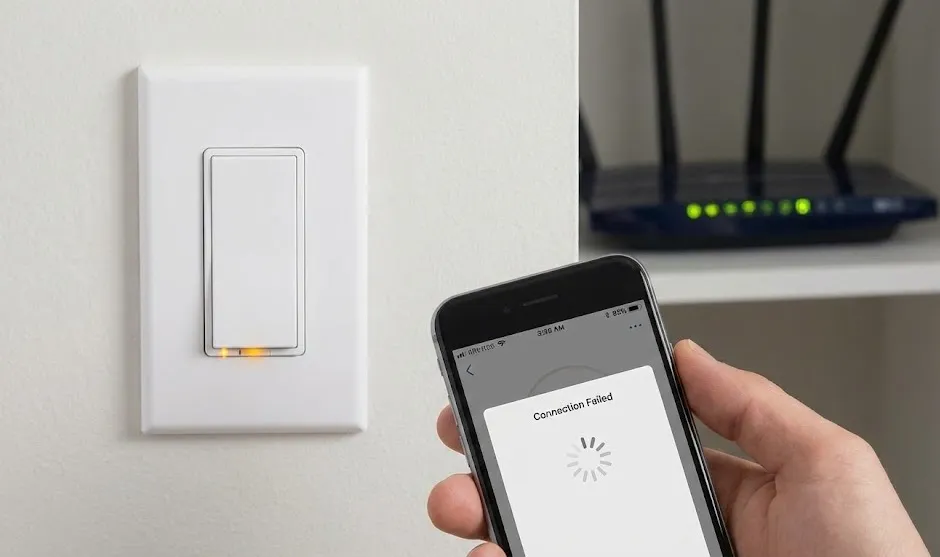
Before we jump into the fixes, it helps to understand why the smart switch not connecting to Wi-Fi issue happens. Unlike your laptop or smartphone, smart home devices are often a little “picky” about their network connection.
Usually, the problem boils down to one of these three things:
- Frequency Mismatch: Your router is broadcasting a signal the switch can’t “see.”
- Weak Signal: The switch is too far away from the router or blocked by thick walls.
- Software Glitches: Sometimes, the app or the switch just needs a fresh start.
Let’s tackle these one by one.
Solution 1: The 2.4GHz vs. 5GHz Problem (The #1 Culprit)
This is the most common reason for a smart switch not connecting to Wi-Fi.
Most modern Wi-Fi routers are “dual-band.” This means they broadcast two different signals:
- 2.4GHz: This signal is slower but travels through walls better.
- 5GHz: This signal is super fast but has a shorter range.
Here is the catch: Almost all smart switches only work on the 2.4GHz band. They do not have the hardware to connect to 5GHz.
If your phone is connected to your router’s 5GHz network while you are trying to set up the switch, the setup process will fail. The app on your phone tries to pass the 5GHz credentials to the switch, but the switch doesn’t understand them.
How to fix it:
- Check your Wi-Fi list: Open the Wi-Fi settings on your phone. Do you see two networks named something like “MyHomeWiFi” and “MyHomeWiFi-5G”?
- Connect to the 2.4GHz one: Make sure your phone is connected to the network without “5G” in the name before you start the setup process in the app.
- Disable 5GHz temporarily: If your router combines both bands into one single name (Mesh systems often do this), you may need to go into your router settings and temporarily turn off the 5GHz band until the switch is connected.
Solution 2: Put the Switch in Pairing Mode Manually
Sometimes, we assume the device is ready to pair just because we turned the power on. However, smart switches need to be in a specific “pairing mode” to accept new Wi-Fi details.
Usually, this is indicated by a fast-blinking LED light on the switch. If the light is solid or blinking very slowly, it is not ready.
How to fix it:
- Look for the restart/reset button on the switch.
- Press and hold the button for about 5–10 seconds.
- Wait until the indicator light starts flashing rapidly.
- Open your app and try the “Add Device” process again.
If your smart switch is not connecting to Wi-Fi even after this, try the “AP Mode” or “Slow Flash Mode” if your app supports it. This is an alternative pairing method that is often more reliable than the default “EZ Mode.”
Solution 3: Check Your Wi-Fi Password
It sounds silly, but you would be surprised how often this happens. When you type your Wi-Fi password into the smart home app (like Smart Life, Tuya, or Kasa), it is case-sensitive.
If you accidentally typed a capital letter where a lowercase one should be, or added a space at the end, the switch will try to connect and fail silently.
Pro Tip: When entering the password, look for the “eye” icon to reveal the text. Double-check every character before hitting “Next.”
Solution 4: The “Too Many Devices” Limit
How many devices do you currently have connected to your router? Phones, laptops, tablets, smart TVs, gaming consoles, other smart bulbs… it adds up fast.
Standard home routers provided by internet service providers (ISPs) often have a limit on how many devices they can handle at once, sometimes as few as 15 or 20. If you have hit that limit, your router will simply refuse to let the new smart switch connect to Wi-Fi.
How to fix it:
- Try disconnecting a few non-essential devices (like an old tablet or a printer) from the Wi-Fi.
- Try connecting the smart switch again.
- If it works, you know your router is the bottleneck, and it might be time to upgrade to a better router or a Mesh Wi-Fi system.
Solution 5: Installation and Wiring Issues
If the app can’t find the switch at all, the issue might not be the software, it might be the hardware installation. Smart switches require power to operate their Wi-Fi radio.
Check the Neutral Wire: Most smart switches require a neutral wire (usually white). Standard “dumb” light switches often don’t use this wire. If your home’s wiring is older and lacks a neutral wire in the switch box, a standard smart switch will not power up correctly.
Check for Loose Connections: Turn off the breaker, open the switch back up, and ensure all wire nuts are tight. A loose wire can cause intermittent power loss, leading to the smart switch not connecting to Wi-Fi reliably.
Solution 6: Disable VPNs and Ad Blockers
Are you running a VPN (Virtual Private Network) or an ad-blocking app on your phone? These are great for privacy, but they are terrible for smart home setup.
Smart apps need to communicate directly with the local network to find the new device. A VPN tunnels your traffic to a different location, essentially “hiding” your phone from the smart switch sitting right next to it.
How to fix it:
- Turn off your VPN completely.
- Disable any system-wide ad blockers.
- Once the device is successfully connected, you can turn your VPN back on.
Solution 7: The “Phone Hotspot” Test
If you have tried everything above and you are still pulling your hair out because the smart switch is not connecting to Wi-Fi, try this diagnostic trick. This will tell you if the switch is broken or if your router is the problem.
- Get a second smartphone or tablet.
- Turn on the “Personal Hotspot” feature on that second phone.
- Change the name and password of the Hotspot to match your home Wi-Fi exactly (or create a simple new one).
- Connect your primary phone to this Hotspot.
- Try to set up the smart switch using the Hotspot connection.
If the switch connects instantly to the hotspot, your switch is fine! The problem is definitely a setting in your home router (likely a firewall or MAC filtering issue).
Final Thoughts
Dealing with a smart switch not connecting to Wi-Fi is a rite of passage for any smart home enthusiast. It requires a little patience, but the payoff is worth it. Once you get that switch connected, you won’t have to worry about it again.
Start by checking the 2.4GHz band, as that solves the majority of cases. If that fails, work your way down the list. Before you know it, you’ll be controlling your lights from the comfort of your couch, wondering why you didn’t switch sooner.